Key takeaways
A missed call doesn’t just cost you a lead. It costs you the job, because the caller is already dialing the next name on the list. This guide covers both ways to set up GoHighLevel’s missed call text back: the quick built-in toggle and the more flexible workflow, plus what to check when the texts don’t go out.
- An unanswered call triggers an automatic text so the caller isn’t left guessing.
- The built-in toggle takes a few minutes to turn on and covers most shops.
- A custom workflow gives you more control over timing, wording, and follow-up tagging.
- Most silent failures trace back to carrier registration (A2P 10DLC), not a broken workflow.
- Test the setup with a real call before you trust it with a real customer.
When you miss a call, you lose the job
The caller is already dialing the next number
When someone calls your shop, they need an answer now, not a callback tomorrow. If the phone rings through to voicemail, most people hang up and try the next contractor on their list. GoHighLevel’s missed call text back gets a message out inside the same 60-second missed-call window you’re already racing against, so the caller hears from you before they’ve moved on.
Stop losing callers to whoever answers first
Most people don’t want to leave a voicemail. If nobody picks up, they just call the next name that comes up in their search. An automatic text breaks that pattern. It keeps your business in the conversation even when you’re elbow-deep in a job and can’t grab the phone.
Tell them when you’ll actually call back
A caller who just wants a price or a fast repair doesn’t want silence. Your automated text should say when someone from your team will follow up. That one line is often the difference between a customer who waits and one who writes you off as unreachable.
Getting your phone system ready
Check your Twilio or LC Phone connection
Before you build anything, confirm the phone connection itself is live. Your account needs a working LC Phone or Twilio connection to send and receive text messages. If that connection is down or the account balance is empty, your texts sit in a queue instead of reaching the customer, and you won’t know until a job has already walked away.
Set your real business hours
Automation should match how your shop actually runs, not a generic schedule. Set your business hours in GoHighLevel so the system knows when calls should reach you directly and when it should send the automated reply instead. Skip this and the text-back can fire while you’re standing right next to the phone, which looks odd to a customer who can tell you’re open.
Verify your business phone profile
Carriers now require a verified business profile before they’ll reliably deliver automated texts to customer phones. Skip this step and your messages can get filtered out without any warning. That’s a quiet way to lose a job: the text back “sends,” but it never actually lands. This is also the first thing to check if you’re setting up the systems from AI SEO Local and want them to actually work end to end, not just look configured.
The 5-minute setup: turn on the built-in toggle
If you just want something working today, start here instead of the workflow builder. GoHighLevel has a built-in missed call text back option in your Phone Numbers settings. Turn it on, write a default message, and it covers every missed call on that number without you touching the automation editor at all.
- Open your Phone Numbers settings and find the number you want to protect.
- Turn on the missed call text back option for that number.
- Write the default message you want sent (see the templates further down for wording that works).
- Save it, then place a real test call to confirm the text actually goes out.
That covers the basics: someone calls, nobody picks up, they get a text. If you want to control timing more precisely, tag callers automatically in your CRM, or send different messages depending on the time of day, that’s where the workflow below comes in.
The advanced setup: build a workflow for more control
Open the workflow editor
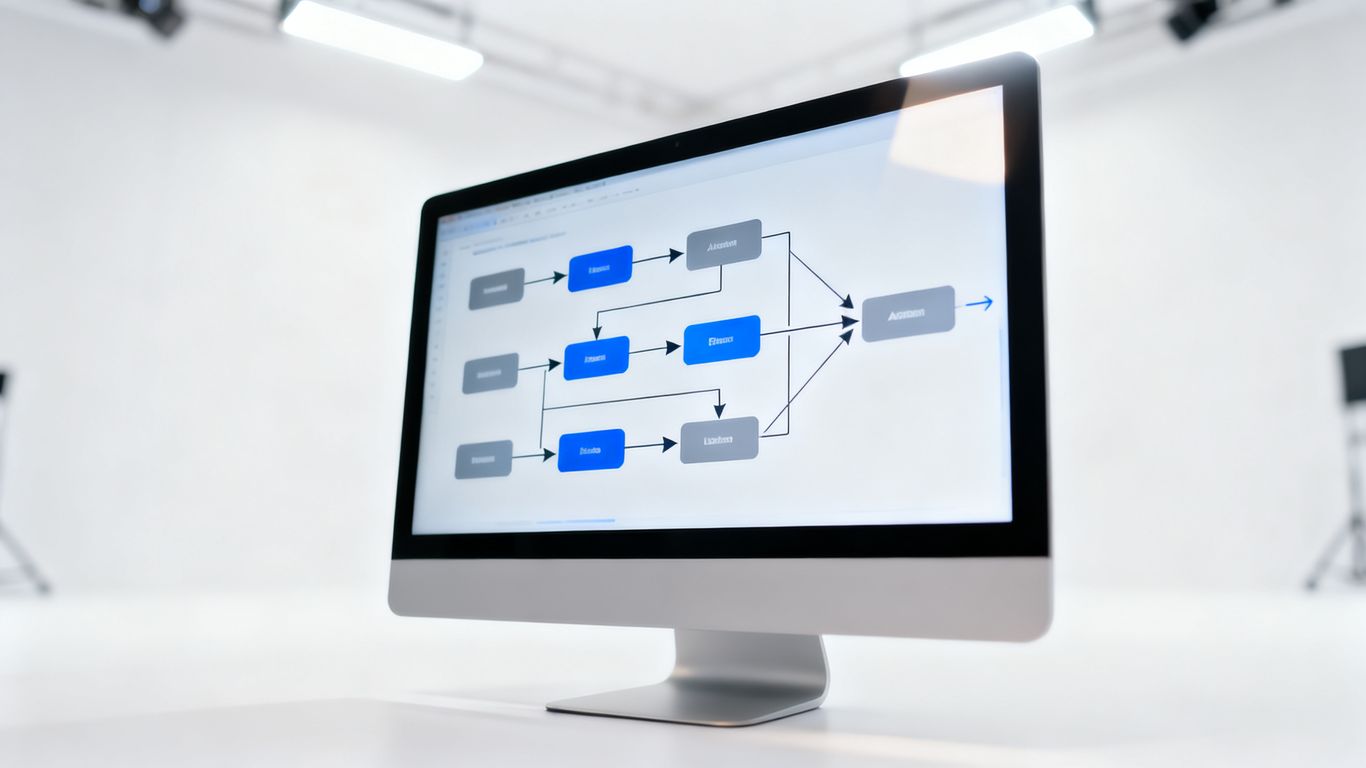
From your main dashboard, open the automation tab and start a new workflow from scratch. Building it yourself, rather than starting from a template, means you control every step instead of guessing what a pre-built flow is doing behind the scenes.
Set the call status as your trigger
- Select the call status trigger in the workflow builder.
- Filter it down to missed or busy calls only.
- Save the trigger so no other call status sneaks in.
- Tag these callers in your CRM so you can follow up with them later.
Add the SMS action
After the trigger, add an SMS action step. Say who you are and that you missed their call. Write it the way you’d actually text someone, not like a business blasting out a brochure.
Keep the delay short
The message should land while the caller is still looking at their phone. A delay of one or two seconds feels natural without being noticeable. Wait five minutes and you’ve already lost the edge the 60-second text-back is supposed to give you.
Testing the automation for reliability
Call it from a second phone
Call your business number from a friend’s phone, or a second line, and let it go unanswered. Time how long it takes for the text to land. If it shows up on the second phone almost right away, the trigger and the SMS action are both working.
Check the workflow’s execution log
Open the history tab for that workflow. It shows whether the action fired or stalled at the trigger. A green checkmark means it ran. If you don’t see one, something upstream broke before the text ever went out.
Look at the contact’s activity record
Pull up the contact profile created by the call. You should see the missed call and the outgoing text sitting in the same timeline. That’s your proof the system caught the call and answered it.
Message templates that actually work (copy and paste)
The wording matters as much as the setup. Keep it short, name your business, and give the caller something to do next. A few starting points for trades:
- General trade: “Hi, this is [Company Name]. Sorry we missed your call, we’re on a job right now. Text us what’s going on and we’ll call you back the second we’re free.”
- Plumbing or emergency call: “Hey, this is [Company Name]. We missed your call but we’re on it. If this is an emergency, reply URGENT and we’ll bump you to the front of the line.”
- HVAC or scheduling: “This is [Company Name], sorry we missed you. What’s the issue and what’s your zip code? We’ll text you back with the next available time.”
- After hours: “Thanks for calling [Company Name]. We’re closed right now but we saw you called. Text us the details and we’ll follow up first thing when we open.”
Swap in your own business name and tone, but keep the pattern: acknowledge the miss, say what you’re doing about it, and give the caller a reason to text back instead of writing you off for good.
A text message costs next to nothing to send. Losing a job because nobody answered the phone costs a lot more than that. That’s really the whole case for setting this up: a small, automatic reply protects revenue you’d otherwise lose without ever knowing it happened.
Common issues and how to fix them
When the text-back doesn’t fire, it’s rarely the workflow itself. It’s almost always one of a handful of things sitting upstream of it.
Issue #1: your texts aren’t sending (the A2P problem)
The single most common reason a missed call text-back goes silent is A2P 10DLC. US carriers block texts from business numbers that haven’t completed this registration, and they do it quietly. The workflow fires, the log shows success, and the customer never gets anything. If your automation looks fine in the logs but customers say they never got a text, check your business messaging profile and A2P registration status before you touch anything else.
Issue #2: the wrong number is selected
If you have more than one number in your account, it’s easy to build the trigger against the wrong one. Double-check that the number receiving your calls is the same number your workflow is actually watching.
Issue #3: the contact has opted out
If a contact has replied STOP or opted out of texts before, they won’t get an automated reply, and they shouldn’t. Respect that opt-out. Texting around it is a fast way to get your number flagged by carriers.
Issue #4: the workflow isn’t published, or something else is blocking it
A few other things break quietly:
| Issue type | Typical cause | How to fix it |
|---|---|---|
| Trigger failure | Workflow not published | Toggle the workflow to published |
| SMS failure | Phone balance emptied out | Add credit with your messaging provider |
Conflicts also show up when several workflows fire off the same call event. Check whether you have other follow-up rules that might be racing the missed call response, and set the text-back to run first. A prospect should get your text before a delayed marketing email, not after.
Handling a sudden burst of calls
During a busy stretch, your account can hit throughput limits if a lot of calls come in at once. That’s rare for a standard shop, but if you’re running a big marketing push, check your plan’s limits. AI SEO Local generally recommends keeping an eye on these logs so a good problem, too many calls, doesn’t turn into a bad one: calls that never get answered at all.
Conclusion
Setting up missed call text back doesn’t take long, and it closes one of the easiest ways a job slips through the cracks. Start with the built-in toggle if you want something running today. Move to the workflow when you want more control over timing and follow-up. Either way, test it with a real call before you trust it with a real customer.
Frequently asked questions
What’s the difference between the built-in toggle and a workflow?
The toggle is the fastest way to get a missed call text working: turn it on, set one message, done. A workflow gives you more control, different messages by time of day, tagging in your CRM, and the ability to cancel the text if you pick up the call while it’s still queued.
Do I need to complete A2P 10DLC registration for this to work?
Yes. If your business messaging profile isn’t verified through A2P 10DLC, carriers will block or filter your automated texts, often without any obvious error on your end. This is the first thing to check if messages aren’t reaching customers.
Does this work after business hours?
Yes. You can build in logic that checks the time of the call and sends a different message when you’re closed, one that still gives the caller a way to reach you or leave details for the morning.
How much does missed call text back cost to run?
It depends on your GoHighLevel plan and how many texts you send, so we won’t quote a number here since pricing changes. What matters more: the cost of sending a text is small next to the cost of losing a job because nobody answered.
Can I customize the message based on who’s calling?
Yes. You can pull in a caller’s name or other details you already have on file, so the reply feels specific instead of generic.
What happens if I pick up the call before the text goes out?
You can set the workflow to cancel the scheduled text if you answer manually during the delay, so you don’t send an automated reply to someone you’re already talking to.
Do I need to know how to code to set this up?
No. Both the toggle and the workflow builder are made for non-technical setup. If you can follow the numbered steps in this guide, you can build it.
Can I include a booking link in the text?
Yes. You can drop a shortened link to your booking calendar in the message so interested callers can grab a time slot themselves while you’re on the job.
Want to know exactly where your Google Business Profile is losing you calls? Get a free, no-obligation GBP audit.