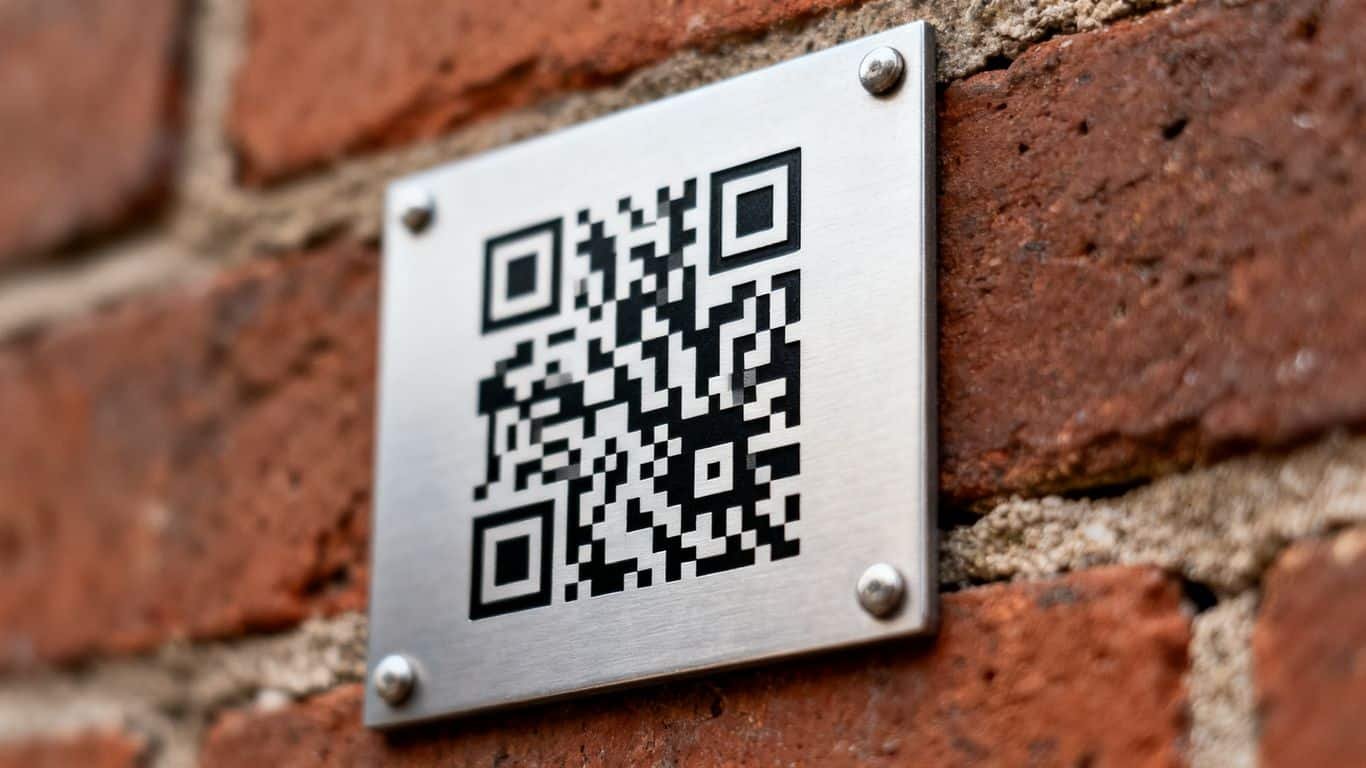
Key takeaways
- More Google reviews make it easier for customers to find and choose you, and that adds up to more booked jobs.
- A QR code turns “please leave us a review” into a two-second scan and tap.
- Google Business Profile gives you a review link, and a QR code for that link, for free. You don’t need to build anything.
- Put the code where customers already are: the invoice, the van, the counter.
- Ask every customer the same way, never just the ones you expect to say nice things, and never offer a discount or gift for a review.
- Reply to every review you get, good or bad.
Why use a QR code for Google reviews
A Google reviews QR code is a scannable image that sends a customer’s phone camera straight to your review box, no search, no typing your business name. A steady flow of reviews is one of the simplest ways to move from page two of Google Maps into the top 3 spots, and people check reviews before they call a contractor.
You get more reviews with less chasing
You have a short window right after the job when the customer is happy and thinking about you. Tell them to “look us up later” and most never do, life gets in the way. A direct link turns that window into one screen tap instead of a search. This is one piece of the review system we set up for operators at AI SEO Local: one working link, asked the same way, every time.
Ask while the job is still fresh
There’s no better moment to ask than right after the work is done and the customer can see the result. Handing over a quick review link while you’re still on site turns the end of the job into a natural close, and you catch the feedback while it’s still fresh in their mind.
How to generate your Google reviews QR code
Do this part from a computer, not your phone. Many mobile versions of the Business Profile dashboard don’t show the option to grab your review link.
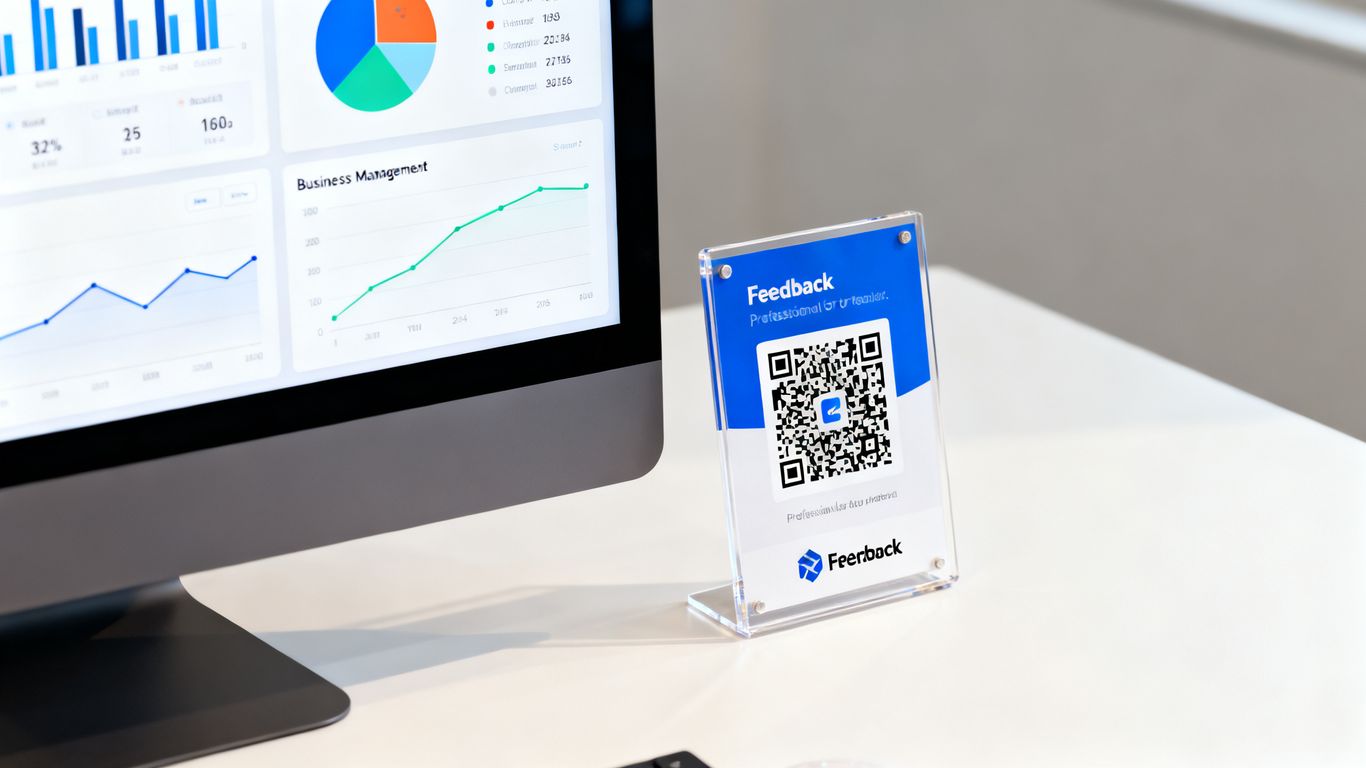
Get your link and code from Google Business Profile
- Log into your Google Business Profile on a desktop browser.
- Find “Get more reviews” in your review management or home tab.
- Copy the link Google gives you. This is your official review link. It sends customers straight to the review box instead of your homepage.
- Grab the QR code for that same link. Google Business Profile can hand you a ready-made QR code image right alongside the link, no extra tool needed for a plain, working code.
Google’s built-in code vs. other QR generators
Google Business Profile gives you a QR code for that link at no cost, and for most operators, that’s genuinely all you need. Some outside tools will let you change the color or add your logo to the middle of the code. Before you sign up for one, check what you’re trading it for: several of those tools hold basic features, like editing where the code points later, behind a paid plan.
Static codes vs. dynamic codes
Once you start looking at QR generators, you’ll run into the words “static” and “dynamic.” A static code is like a phone number printed on a flyer: simple, permanent, it never changes. A dynamic code is more like a phone number you can forward to a new line later. You print it once, and if you ever need to point it somewhere else, say a new review page after a rebrand, you update the destination without reprinting a single sticker or invoice.
For a Google review link, static usually does the job. That link doesn’t change unless your business name changes or you open under a new profile. Save dynamic codes for cases where you expect the destination to move.
Test before you print
Scan the code yourself before it goes anywhere near a printer. Confirm it opens the review box directly, not your homepage or your Maps listing. If it lands somewhere wrong, check which link you pasted into the generator and test it again.
Where to place your QR code for best results
Put the code where a customer sees it at the exact moment they’re deciding whether to say something nice about you.
Signage at your shop or job site
A small stand at the counter works for a shop. For a trade business, a durable sticker on the dashboard of your van or clipped inside your finished job folder gets seen just as often.
| Location Type | Best For | Frequency |
|---|---|---|
| Counter Stand | Retail Shops | Daily |
| Service Van Sticker | Field Service | Per Visit |
| Job Invoice Footer | Final Paperwork | Every Job |
Keep it to one code across every location. A Google support thread on this exact question shows other small operators asking the same thing: where do I get this, and how do I use it everywhere.
Receipts and invoices
If you send paper invoices or receipts, put a small code near the bottom. It’s the last thing a customer sees before they file it away, which makes it a natural nudge. Customers who look closely at their bill are often the ones who noticed you did the job right.
Business cards and flyers
A business card usually ends up in a wallet and gets forgotten. A QR code gives it a reason to get pulled back out. Keep the card design clean so the code stays big enough for any phone camera to read.
Email signatures
A physical code works best in person, but don’t skip the digital version. Put a plain text link to your review page in your email signature. It’s not a QR code, but it does the same job for anyone you deal with by email.
Best practices for asking customers for reviews
Asking for a review is a normal part of running a service business. It shouldn’t feel like a demand. Frame it as an invitation to say what they think.
Timing the ask
Ask after the job is done and you’ve confirmed the customer is happy with the work. Asking while someone is still frustrated about a leaking pipe or a broken HVAC unit is a good way to earn a bad rating. A day or two after the job, while it’s still fresh, works well.
Why reviews matter, in your own words
Be straight with customers about why you’re asking. Your reputation is what brings in the next job, and their review helps a neighbor decide whether to call you or the next guy in the listings.
Ask everyone, and never pay for a review
Ask every customer the same way, not just the ones you’re sure will say something nice. Picking and choosing who gets asked is a fast way to end up with a profile that doesn’t reflect your real work. Never offer a discount, a free service, or a gift in exchange for a review. That’s against Google’s policy, and it can get your profile suspended. Just ask for an honest opinion about the job you did.
- Be honest about why the review matters to your business.
- Keep the ask short and low-pressure.
- Thank the customer whether they leave three stars or five.
Troubleshooting common QR code issues
A code that doesn’t work is a missed review, and possibly a customer who never bothers again. Check your link first when something breaks.
The link doesn’t load properly
If the code returns an error page, check whether Google or your generator changed something on their end. Redirects break sometimes. Test your physical codes once a month so you catch it before a customer does.
A shortened or dynamic link has expired
If you used a dynamic code through a third-party generator, log into that account and confirm the link is still active. If you see dead scans piling up, replace the code. A missing code is better than one that leads to a “404 Not Found” page.
An older phone won’t scan the code
Some older phones struggle with QR codes that pack in too much data. Keep the underlying link short and simple so the code pattern stays easy for a basic camera to read. If someone still can’t get it to scan, hand them the link written out, or offer to text it to them.
Monitoring and responding to your feedback
A review doesn’t stop mattering once it’s posted. Replying shows anyone reading that you’re paying attention and that you take the work seriously.
Reply to every review
Replying to reviews signals that your profile is active and maintained, which can help you show up when someone nearby searches for your trade. Treat it the same way you’d treat a missed call: something you handle quickly, not something that sits.
Handling a bad review
Stay level when a bad review comes in. Don’t get defensive or write a long, emotional reply. Stick to the facts, acknowledge what happened, and invite the customer to sort it out privately. A calm reply often matters more to the next person reading than the bad review itself.
Turning complaints into fixes
Pay attention to what customers are actually saying. If you notice a pattern, complaints about scheduling, or about billing, treat that as a signal and adjust how you run things. A cluster of similar complaints tells you something a single unhappy customer might not.
Conclusion
A Google reviews QR code is a small, cheap fix: one link, printed somewhere your customer already looks. Ask every customer the same way, check your codes once a month, and reply to what comes in. Do that consistently and you’ll see it in your review count, and eventually in your spot on Google Maps.
Frequently asked questions
Can I put my Google reviews QR code on multiple marketing materials?
Yes. Print the same code on as many materials as you like, there’s no limit and no extra cost.
Will my QR code expire if I don’t use it?
Your official Google review link doesn’t expire. If you built your code through a third-party shortener, though, that shortened link can expire depending on the service you used.
Do I need to be a tech expert to set this up?
No. You need basic computer skills to pull the link from your dashboard and print it, that’s the whole job.
Can I put my logo on the QR code?
Not with Google’s own version, that one is a plain code. If you want your logo inside it, you’ll need a separate generator for that step, and it’s worth checking what that generator charges before you commit.
Do I need a special app to scan the code?
No. Any phone camera made in the last several years reads a QR code on its own. Point the camera at it and tap the link that pops up.
Is it okay to ask for a review in person while the customer is happy?
Yes, in-person requests are often the ones that actually turn into a review.
What happens if someone leaves a fake review?
Flag it through your Google dashboard if you think a review is fake or breaks policy. Google will look into it.
Can I offer a small reward for a review?
No. Offering a reward or incentive for a review breaks Google’s policy, no matter how small the reward is.
How often should I check my QR code links for errors?
Once a month, or whenever you update your physical signage, is enough to catch a broken link before it costs you a review.
Want to know exactly where your Google Business Profile is losing you calls? Get a free, no-obligation GBP audit.